QuickBooks Connectivity Issues: Causes, Fixes, and Network Troubleshooting Steps
A practical guide to diagnosing QuickBooks Desktop network problems, fixing server communication errors, and restoring reliable multi-user access.

Learn how to diagnose QuickBooks Desktop connectivity issues, resolve server and firewall problems, restore multi-user access, and troubleshoot interrupted company-file connections.
QuickBooks connectivity issues can prevent users from opening a company file, accessing a shared accounting database, switching to multi-user mode, or connecting to services that depend on an internet connection. These problems may appear as network errors, server communication failures, firewall warnings, or unexpected connection interruptions.
The right solution depends on where the connection is failing. A computer that cannot access the internet has a different problem from a workstation that cannot communicate with a QuickBooks company file hosted on another computer.
For reliable troubleshooting, first identify whether the issue affects the internet connection, QuickBooks application, company file, or local network. Then work through the appropriate checks without making unnecessary changes to the company data.
This guide explains common QuickBooks connectivity problems, their possible causes, and practical troubleshooting steps for Windows-based QuickBooks Desktop environments.
Understanding QuickBooks Connectivity Issues
QuickBooks Desktop uses different types of connections depending on how the software is configured.

For example:
- Internet connectivity: Used by supported online services, updates, downloads, and connected features.
- Local network connectivity: Allows workstations to communicate with a computer hosting a shared company file.
- Company-file access: Depends on the file location, Windows permissions, and the availability of required QuickBooks services.
- Multi-user communication: Requires the host computer and workstations to communicate correctly across the network.
A problem in one area does not automatically mean that the entire network is unavailable.
Before attempting repairs, determine what users can and cannot access. This helps narrow down the cause and prevents unrelated troubleshooting steps.
Common Signs of QuickBooks Connectivity Problems
QuickBooks Connectivity problems can appear in different ways depending on the software version and network configuration.
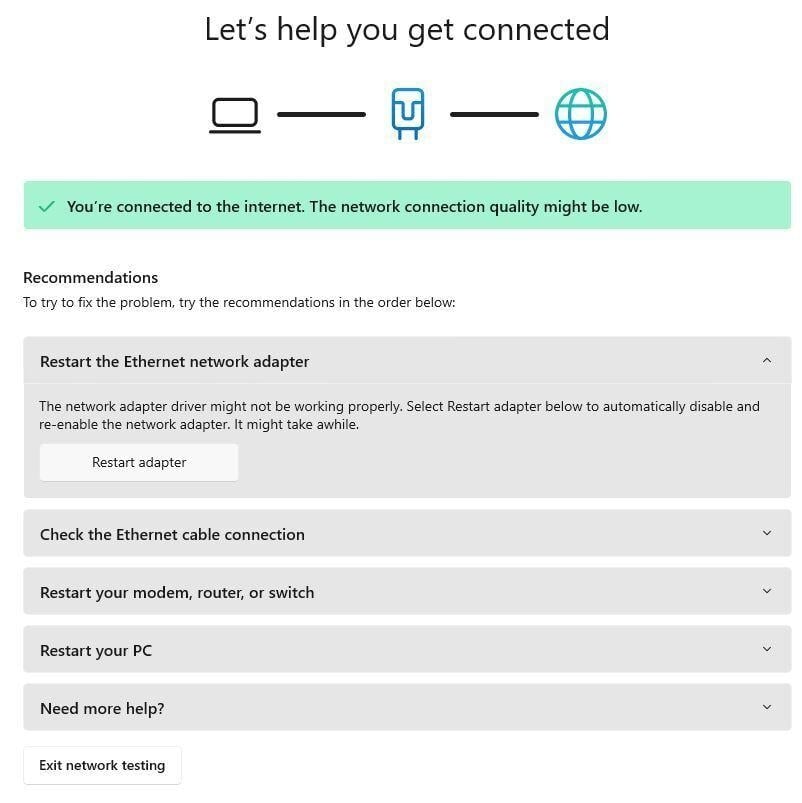
Watch for these symptoms:
- QuickBooks cannot connect to the server computer.
- A company file opens on the host but not on a workstation.
- QuickBooks switches to single-user mode unexpectedly.
- Multi-user mode fails to start.
- The company file connection drops during work.
- QuickBooks displays a firewall or network communication message.
- Online features cannot establish a connection.
- Other computers cannot access a shared company-file folder.
- QuickBooks becomes unresponsive when opening a company file stored on a network.
Suggested image caption: Common network and server connection symptoms can help identify where QuickBooks connectivity is failing.
What Causes QuickBooks Connectivity Issues?
Several technical conditions can interfere with QuickBooks connections. The following are common possibilities rather than a diagnosis of every connectivity problem.
1. Unstable Network Connection
A weak or interrupted network connection can prevent a workstation from communicating consistently with the computer hosting the company file.
This may happen because of:
- Faulty Ethernet cables.
- Router or switch problems.
- Intermittent Wi-Fi connections.
- Network adapter issues.
- Incorrect network configuration.
When multiple computers experience the same problem, investigate the shared network infrastructure before changing individual QuickBooks settings.
2. Windows Firewall or Security Software Restrictions
Windows Firewall and third-party security applications can block network traffic required by QuickBooks Desktop.
If the necessary applications, services, or ports are not permitted, a workstation may fail to communicate with the host computer.
Firewall configuration must match the installed QuickBooks version. Avoid disabling firewall protection permanently just to test a connection.
3. Incorrect Hosting Configuration
In a multi-user environment, the computer hosting the company file must have the appropriate hosting configuration.
If a workstation is incorrectly configured to host multi-user access, it can create communication problems.
The hosting role should be configured according to the actual network setup, with the designated server or host responsible for sharing the company file.
4. QuickBooks Database Server Manager Problems
QuickBooks Database Server Manager helps manage company-file access in supported multi-user installations.
If its required services are stopped, its company-file folders are not configured correctly, or its network permissions are restricted, workstations may fail to connect.
5. Incorrect Folder Permissions
Windows folder permissions determine whether users and services can access the location where a company file is stored.
A user might be able to see the shared folder but still lack the necessary permissions to open or work with the company file.
6. Outdated Software or Incompatible Components
An outdated QuickBooks release or an incorrectly configured installation can contribute to communication problems.
Keep the QuickBooks installation and related components updated according to the requirements of the specific product version.
How to Fix QuickBooks Connectivity Issues
Use the following troubleshooting sequence. Start with basic checks and move to more advanced network configuration only when necessary.
Step 1: Check the Internet and Local Network
First, determine whether the problem affects internet access, local network access, or both.
On the affected computer:
- Open a web browser and test access to a trusted website.
- Check whether Windows reports an internet or network connection problem.
- If the company file is hosted on another computer, confirm that the host is powered on.
- Check the Ethernet cable, router, and network switch connections.
- Try accessing another permitted file in the shared folder.
If the computer cannot access the shared folder, investigate Windows networking and permissions before focusing on QuickBooks.
For company files shared over a local network, a stable wired connection is generally preferable to relying on an unstable wireless connection.
Step 2: Restart QuickBooks and the Affected Computers
Temporary application or network-service problems can sometimes interrupt communication.
Follow these precautions:
- Ask all users to save their work.
- Make sure everyone has closed the company file.
- Exit QuickBooks on the affected workstations.
- Restart the workstation.
- If necessary, restart the server or host computer after confirming that no users are connected.
- Reopen QuickBooks and test the company file.
Do not restart a server while other users are actively working in the company file.
Step 3: Verify the Company-File Folder Permissions
If QuickBooks cannot access a company file stored on another computer, check the folder containing the file.
- Locate the folder where the company file is stored.
- Confirm that the folder is shared with the intended users.
- Review the Windows sharing and security permissions.
- Confirm that authorized users can access the folder over the network.
- Check whether the company file can be accessed from the affected workstation.
Avoid granting broad access to everyone simply to bypass a permissions problem. Use appropriate permissions for the users and services that require access.
Step 4: Check Windows Firewall Settings
A firewall can prevent QuickBooks from communicating with the server or accessing a shared company file.
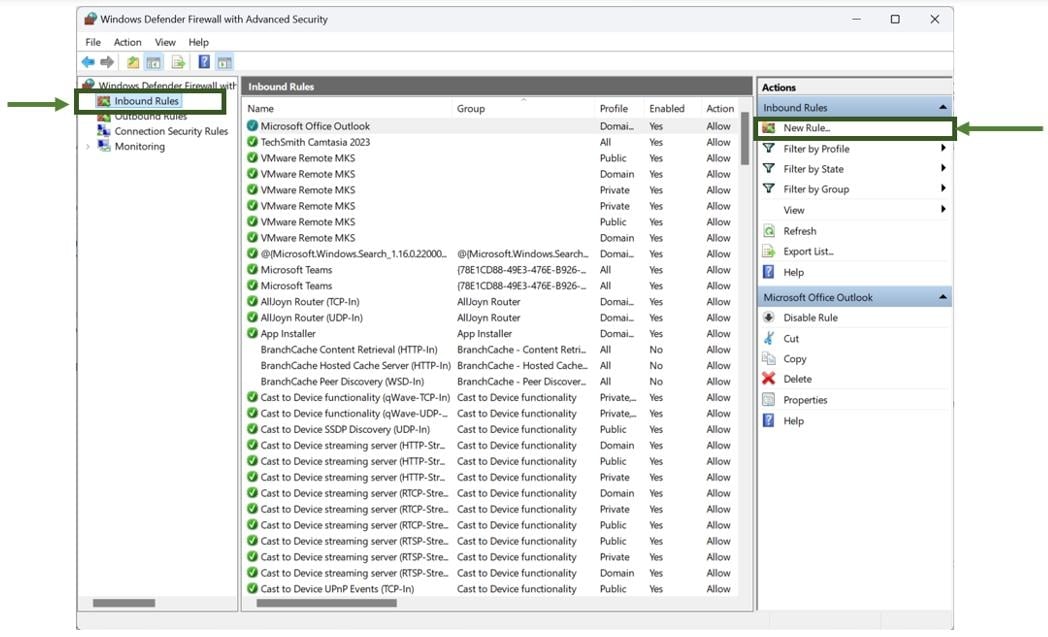
To investigate:
- Open the Windows Start menu.
- Search for Windows Defender Firewall.
- Open its advanced settings.
- Review the inbound and outbound rules related to QuickBooks.
- Confirm that the required QuickBooks applications and version-specific TCP ports are allowed.
- Review third-party antivirus or firewall settings if they also manage network traffic.
QuickBooks Desktop versions can use different port configurations. Recent versions may use dynamic ports, so do not copy a port number from an unrelated version.
Refer to the official QuickBooks Desktop firewall and security instructions for version-specific details.
Step 5: Check QuickBooks Database Server Manager
If your business uses a shared company file, check the Database Server Manager on the computer hosting the file.
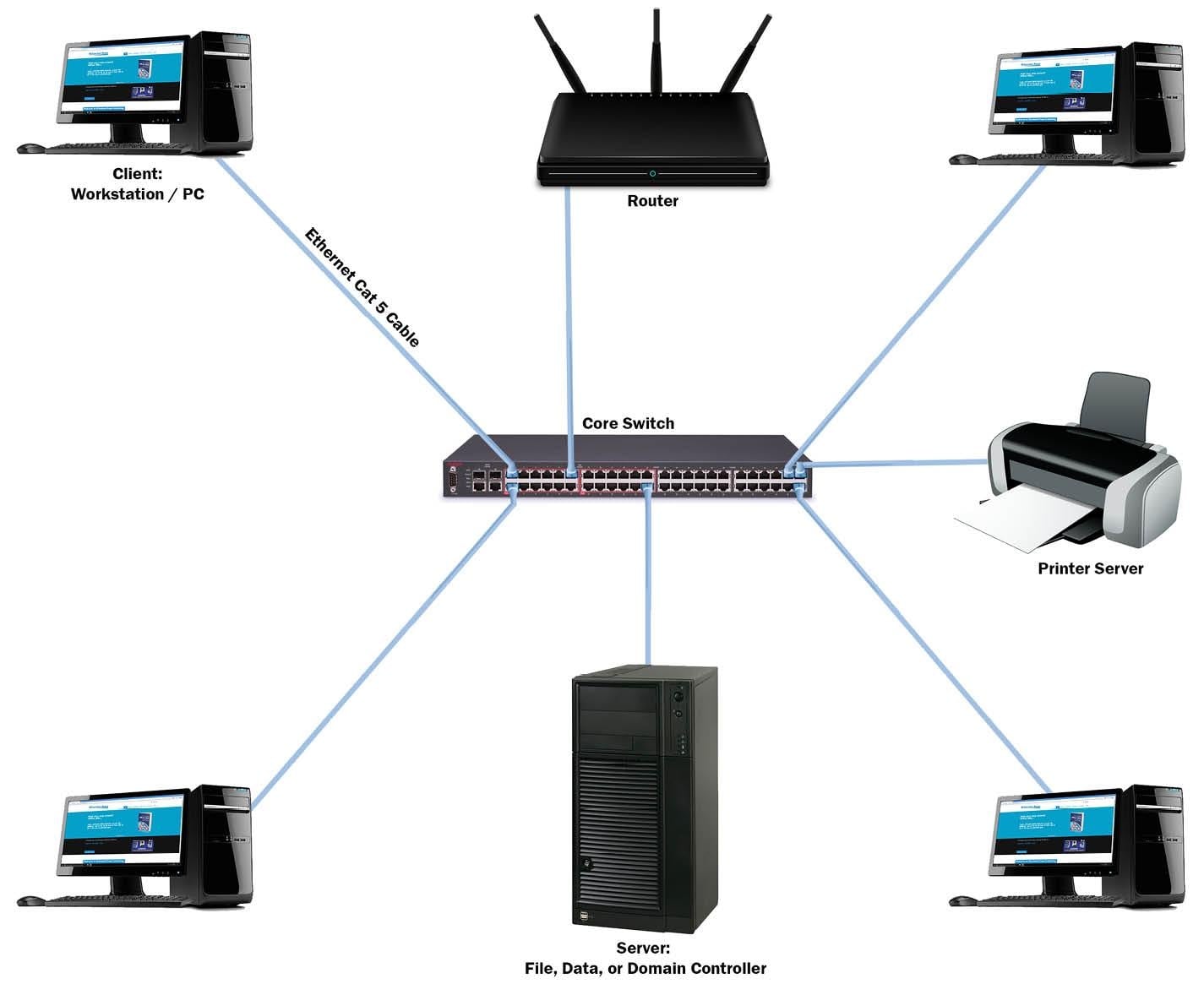
- Close QuickBooks on the affected computers.
- Open QuickBooks Tool Hub on the server, if installed.
- Select Network Issues.
- Open QuickBooks Database Server Manager.
- Browse to the folder containing the company file if it is not already listed.
- Select Start Scan.
- Allow the scan to complete.
- Reopen QuickBooks on the workstations and test multi-user access.
The scan can help configure firewall permissions and identify company-file folders that need to be monitored.
The exact available options may vary by installation. Follow the instructions for your QuickBooks version.
Step 6: Verify QuickBooks Hosting Settings
Incorrect hosting settings can interfere with multi-user access.
On a workstation:
- Open QuickBooks Desktop.
- Do not open the company file.
- Select File, then Utilities.
- Check whether Stop Hosting Multi-User Access appears.
- If it does, hosting is enabled on that workstation. Select the option to stop hosting.
Repeat this check on other workstations.
Next, check the designated server computer. Hosting should be configured according to the role of that computer and the installed QuickBooks setup.
Do not enable hosting on every workstation. A multi-user environment should have a clearly designated host.
Step 7: Check QuickBooks-Related Windows Services
The QuickBooks Database Server Manager relies on Windows services to support company-file access.
If you suspect a service problem:
- Open the Windows Start menu.
- Search for services.msc.
- Open the Services window.
- Locate the QuickBooksDBXX service associated with your installed version.
- Check whether its status is Running.
- Review its startup configuration.
- Check the QBCFMonitorService as well, where applicable.
The XX portion of the service name varies by QuickBooks release. Do not select a service based on an assumed version number.
If the required service is missing or repeatedly stops, investigate the installation and server configuration before making further changes.
Troubleshooting Common QuickBooks Connectivity Error Codes
Some QuickBooks connectivity problems display specific error codes. These codes can help identify the type of communication failure.
Error code | What it generally indicates |
H101 | Hosting or network configuration problem |
H202 | Workstation cannot communicate with the host |
H303 | Hosting or company-file access configuration problem |
H505 | Multi-user connection or hosting problem |
Connection Lost | QuickBooks has lost access to the company file |
These errors are commonly associated with multi-user access and company-file connectivity, but the exact cause still needs to be investigated.
QuickBooks Error H202
Error H202 can occur when a workstation cannot communicate with the server computer hosting the company file.
Possible causes include:
- Firewall restrictions.
- Incorrect hosting configuration.
- Database Server Manager problems.
- Network communication failures.
- Windows folder permissions.
For a detailed explanation and troubleshooting steps, see the Data Service Team guide to QuickBooks Error H202.
QuickBooks Error H505
Error H505 is associated with multi-user hosting or communication problems. Check which computer is hosting the company file and whether the workstations are configured correctly.
Do not assume that H505 and H202 always have an identical cause. Review the actual network configuration before applying a fix.
QuickBooks Connection Lost
A connection-lost message can appear when QuickBooks loses access to a company file during use.
Possible factors include unstable networking, insufficient folder permissions, firewall interference, server problems, or company-file damage.
Preserve a recent backup before attempting repairs that could affect the company file.
How to Prevent QuickBooks Connectivity Problems
Preventive maintenance can reduce avoidable interruptions, especially in businesses that use QuickBooks Desktop across multiple computers.
Consider these practices:
- Keep QuickBooks Desktop updated according to your product's supported release requirements.
- Maintain a stable network connection.
- Use appropriate folder-sharing and security permissions.
- Review firewall rules after software or network changes.
- Keep the Database Server Manager configured for the correct company-file folders.
- Avoid enabling hosting on workstations that should not act as the host.
- Maintain regular company-file backups.
- Keep the server computer available during business hours.
- Check network performance when multiple users report connection problems.
- Test multi-user access after major configuration changes.
A backup is particularly important because network troubleshooting and company-file repair are separate processes. A backup helps protect accounting data if a repair attempt does not produce the expected result.
When Should You Seek Technical Assistance?
Some connectivity problems require more than basic troubleshooting.
Consider getting help from a qualified QuickBooks or network professional when:
- The host computer is not visible to workstations.
- Firewall changes do not restore communication.
- Database Server Manager services repeatedly stop.
- Multiple computers experience the same connection failure.
- The company file becomes inaccessible after a network change.
- QuickBooks continues losing its connection during active work.
- You suspect company-file damage or data loss.
Before making major changes, document the error message, affected computers, QuickBooks version, company-file location, and any recent network or software changes. This information can help narrow down the issue.
QuickBooks Connectivity Troubleshooting Checklist
Use this checklist to review the most important areas before considering the issue resolved.
- Internet and local network connections have been checked.
- The host computer is powered on and accessible.
- The shared company-file folder is available.
- Windows folder permissions have been reviewed.
- Firewall and antivirus rules have been checked.
- QuickBooks Database Server Manager has been checked.
- Hosting settings are correct on the server and workstations.
- Required QuickBooks services are running.
- All affected users can access the company file.
- A current company-file backup is available.
Frequently Asked Questions
Why is QuickBooks not connecting to the server?
QuickBooks may fail to connect to a server because of firewall restrictions, incorrect hosting settings, network interruptions, folder permissions, or Database Server Manager problems. Identify whether the issue affects one workstation or all workstations before changing the configuration.
Can a firewall cause QuickBooks connectivity issues?
Yes. A Windows firewall or third-party security application can block communication between QuickBooks and the computer hosting the company file. Review the required application permissions and version-specific ports instead of permanently disabling firewall protection.
Why does QuickBooks work on one computer but not another?
This can happen when the affected workstation has different network access, folder permissions, firewall rules, or hosting settings. Compare its configuration with a workstation that can open the company file successfully.
What is QuickBooks Database Server Manager used for?
QuickBooks Database Server Manager supports access to company files stored on a computer used as a server in supported multi-user environments. It helps manage the network access required by other QuickBooks workstations.
How do I fix QuickBooks Error H202?
Start by checking the server connection, hosting configuration, firewall permissions, and Database Server Manager. You can also use the relevant network troubleshooting tools in QuickBooks Tool Hub. The appropriate solution depends on the network setup.
Does Wi-Fi affect QuickBooks Desktop connectivity?
An unstable wireless connection can interrupt communication with a company file hosted on another computer. A reliable wired network connection is generally preferable for a shared company-file environment.
Should I disable Windows Firewall to fix QuickBooks?
No. Permanently disabling firewall protection is not a recommended solution. Identify the required QuickBooks applications and network ports, then configure appropriate exceptions.
Can a damaged company file cause connectivity problems?
Yes, company-file damage can contribute to access problems. However, not every connection error indicates file damage. Check the network, server, permissions, and hosting configuration before assuming that the company file is corrupted.
Conclusion
QuickBooks connectivity issues can interrupt accounting work, prevent access to shared company files, and make multi-user operations unreliable. The most effective troubleshooting approach is to identify where communication is failing before changing network or application settings.
Start with the internet and local network, then check folder permissions, firewall rules, hosting configuration, and QuickBooks Database Server Manager. If a specific error code appears, use it to narrow down the investigation rather than applying unrelated fixes.
Keep a current company-file backup and verify access from every required workstation after making changes. If the connection continues to fail, a qualified technical professional can help investigate the server, network, or company-file configuration.
About the author
- Steven Moody is a tech-savvy accounting professional at Data Service Team, dedicated to resolving complex technical issues with fast and reliable. For expert assistance, Call: +1-(888)-718-7888.
Comments
Join the discussionNo comments yet. Be the first to comment.