How to Move QuickBooks Desktop to a New Computer Without Losing Data
A practical guide to transferring QuickBooks Desktop, restoring company data, and checking essential settings after migration.

Moving QuickBooks Desktop to a new computer requires more than installing the software. You also need to transfer your company data, restore your accounting records, verify important settings, and confirm that the new installation works correctly before retiring the old computer.
The safest approach is to create a verified backup of your QuickBooks company file, install a compatible version of QuickBooks Desktop on the new computer, restore the backup, and compare important financial records before switching completely. Some QuickBooks versions and configurations also support a migration utility that can simplify the process.
This guide explains how to move QuickBooks Desktop to a new Windows computer, what to prepare before transferring files, how to restore your company data, and how to troubleshoot common migration problems.
What You Should Know Before Moving QuickBooks
Before starting, identify how QuickBooks is installed and where your company file is stored. Your migration steps will differ depending on whether you use a single-user installation, a shared company file, or a hosted environment.
Prepare the following:
- QuickBooks version: Record the product edition, release year, and current release information.
- Installation files: Obtain an authorized installer compatible with your version and Windows environment.
- License information: Keep the required product and activation details available.
- Company file: Locate your working .QBW file.
- Backup file: Create a new .QBB backup before moving anything.
- Supporting files: Identify custom forms, logos, attachments, and other resources used by your business.
- Connected services: List any payroll, banking, payment, email, or third-party integrations that may require setup on the new computer.
Do not erase or recycle the old computer immediately after the transfer. Keep it available until you have verified the new installation and confirmed that your accounting records are complete.
Method 1: Move QuickBooks Using a Backup and Restore
A backup-and-restore workflow is a practical method for moving company data to a new computer. It also gives you a separate backup to retain for recovery purposes.
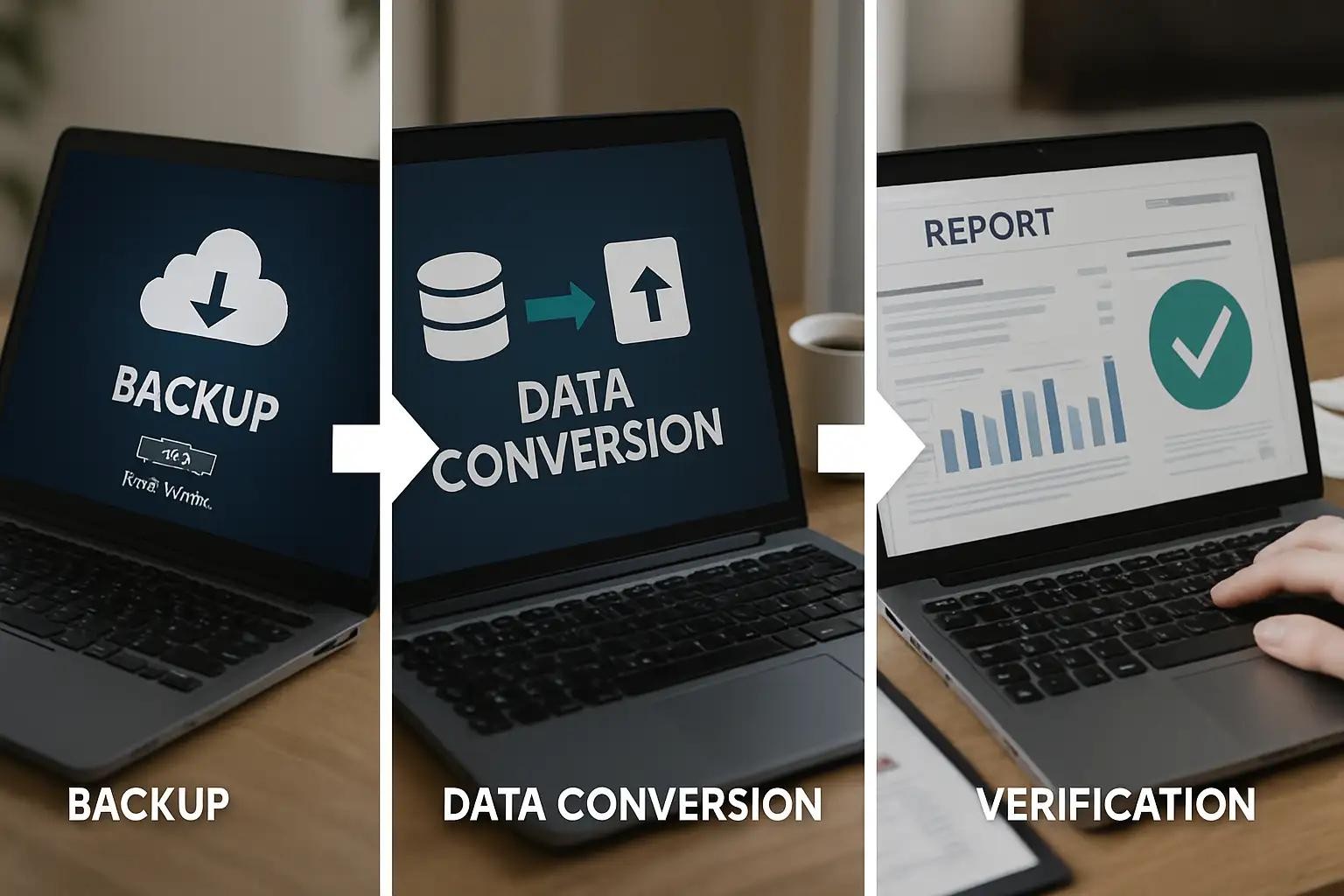
Step 1: Create a company-file backup
On the old computer:
- Open QuickBooks Desktop.
- Open the correct company file.
- Select File → Back Up Company → Create Local Backup. Menu wording can vary by version.
- Follow the prompts to create a backup.
- Save it to a location you can access easily.
- Confirm that QuickBooks completes the backup process successfully.
QuickBooks Desktop commonly uses these file extensions:
Extension | Purpose |
.QBW | Working company file |
.QBB | Company-file backup |
.QBM | Portable company file |
A backup is not the same as a working company file. You normally restore a .QBB backup to create a usable company file on the new computer.
Important: If your company file is hosted on a server or shared with other users, coordinate the backup with the person managing that environment. Avoid copying a live company file while transactions are being entered.
Step 2: Transfer the backup securely
Copy the completed .QBB backup to a trusted USB drive, external storage device, or secure file-sharing location.
If your company file contains sensitive accounting or employee information, protect the transfer against unauthorized access. Avoid sending unprotected financial data through public or untrusted services.
After copying the backup, confirm that the file is present at the destination. Keep the original backup unchanged and, where possible, retain another copy in a separate secure location.
Step 3: Install QuickBooks Desktop on the new computer
Install the appropriate QuickBooks Desktop edition on the new computer using an authorized installation source.
- Confirm that your QuickBooks version is compatible with the new Windows environment.
- Run the installer and follow the installation prompts.
- Enter the required license or product information when requested.
- Complete any required activation steps.
- Open QuickBooks Desktop to confirm that the application launches.
Do not assume that copying the QuickBooks program folder from the old computer will create a complete installation. Program files, activation, supporting components, and computer-specific settings may require a proper installation process.
If you intend to upgrade to a newer QuickBooks version at the same time, create and preserve your backup first. Follow the appropriate company-file upgrade instructions for that version.
Note: If you encounter installation errors, program crashes, or other technical issues while setting up QuickBooks Desktop on your new computer, the QuickBooks Tool Hub can help you diagnose and troubleshoot common problems before you continue with the migration.
Step 4: Restore the backup on the new computer
Once QuickBooks is installed:
- Open QuickBooks Desktop.
- Select File → Open or Restore Company.
- Choose Restore a backup copy, then select Next.
- Select the local backup option when prompted.
- Browse to the transferred .QBB file.
- Select the backup and continue.
- Choose where to save the restored company file.
- Enter a recognizable file name and complete the restoration.
Check the destination carefully. If another company file already exists, avoid overwriting it unintentionally.
After restoration, open the new .QBW file and sign in using the appropriate credentials. If QuickBooks prompts you to update the company file for a newer version, preserve the original backup and follow the version-specific instructions.
Step 5: Verify your accounting data
Do not treat the migration as complete merely because QuickBooks opens.
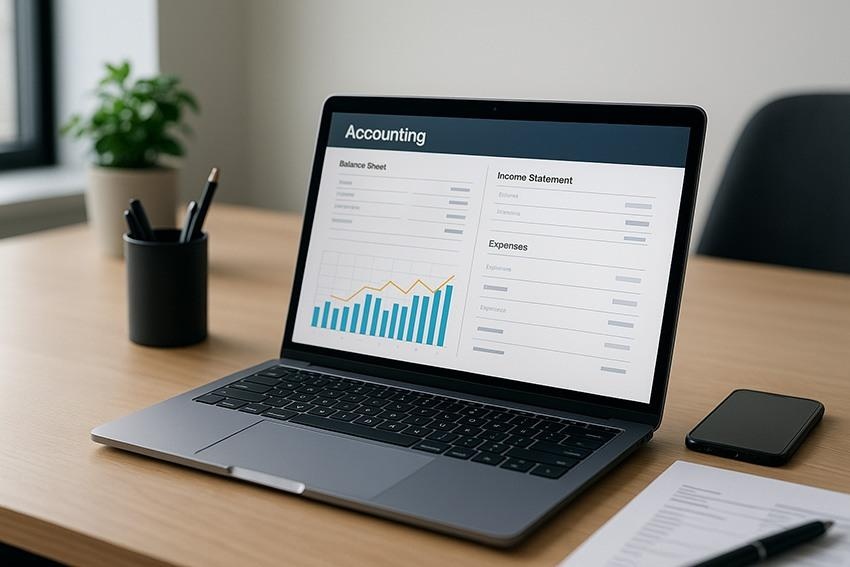
Check the following:
- The correct company name appears.
- The latest expected transactions are present.
- The accounting period is correct.
- The Balance Sheet and Profit and Loss reports show expected figures.
- Accounts receivable and accounts payable balances are reasonable.
- Custom invoice and estimate forms are available.
- Required payroll and connected services have been checked.
- Printing and PDF creation work.
- Multi-user access works if your business uses a shared company file.
For stronger verification, run key reports on the old and new setups for the same reporting period and compare the results. Investigate unexpected differences before making the new computer your only active environment.
Method 2: Use the QuickBooks Migrator Tool
Some QuickBooks Desktop versions offer a migration utility that helps transfer supported program files and selected company data. Its availability, instructions, and transfer limits depend on the version and product configuration.
If your version supports the Migrator Tool, follow the instructions provided for that specific release.
General migration workflow
- Prepare the old computer and make a separate company-file backup.
- Open the supported migration utility and follow its instructions.
- Connect the required removable storage device if prompted.
- Allow the tool to copy the files it supports.
- Connect the device to the new computer.
- Follow the migration prompts on the destination computer.
- Open QuickBooks and verify the company file and essential settings.
Do not assume the migration utility transfers every custom form, external attachment, integration, or computer-specific preference. Check these items separately after the transfer.
Even when you use a migration tool, keep a verified backup of the original company data.
What May Need to Be Set Up Again?
Moving the company file does not necessarily move every supporting component used by your business.
Component | Post-migration check |
Custom forms | Check invoices, estimates, statements, and other customized layouts. |
Logos and attachments | Confirm that required images and supporting documents are accessible. |
Payroll | Verify employee information, payroll settings, and applicable updates before processing payroll. |
Bank feeds | Confirm that the appropriate accounts and online connections work. |
Email settings | Test the workflow used to send invoices or reports. |
Payment services | Verify configuration and connected account details. |
Printers and PDFs | Test invoice printing and report export. |
Third-party applications | Reinstall or reconnect compatible integrations if required. |
Multi-user configuration | Check shared-folder permissions, hosting, and network connectivity. |
Scheduled workflows | Review any business-specific tasks or preferences that depend on the old computer. |
The exact requirements depend on your QuickBooks version and setup. Verify the services you actually use instead of assuming that every setting transfers automatically.
Moving QuickBooks in a Multi-User Environment
A multi-user installation requires additional planning because the company file may be stored on a computer or server that other users access over a network.
First, identify what you are replacing:
- A workstation: You may only need to install QuickBooks on the new workstation and reconnect it to the existing shared company file.
- The hosting computer: You may need to move the company file and configure hosting, shared-folder permissions, and QuickBooks Database Server Manager.
- The entire setup: You need a coordinated migration plan covering the company data, workstations, network paths, and connected services.
Before making changes to a shared company file, coordinate with the other users and ensure they are signed out when necessary.
After migration, test access from a second workstation. If QuickBooks reports a network or hosting error, check the shared-folder path, permissions, firewall configuration, and server setup.
For example, QuickBooks Error H202 is associated with multi-user connection problems and may require a different troubleshooting process from a simple company-file transfer.
Common QuickBooks Migration Problems and Solutions
QuickBooks cannot locate the company file
Possible cause: The restored file is in a different folder, or QuickBooks is still using an old file path.
What to do:
- Use File Explorer to locate the restored .QBW file.
- Open QuickBooks and select File → Open or Restore Company.
- Browse to the correct file.
- If the file is on a network, confirm that the shared folder is accessible and that the user has the necessary permissions.
The backup does not restore
Possible cause: The backup copy is incomplete, the file is damaged, or the destination is inaccessible.
What to do:
- Confirm that you selected the intended .QBB file.
- Verify that the file transfer completed.
- Check that the destination has sufficient free disk space.
- Try a known-good backup if one is available.
- Preserve the original backup if QuickBooks continues to report an error.
Do not overwrite the only available copy while troubleshooting.
Recent transactions are missing
Possible cause: An older backup was restored, or a different company file was opened.
What to do: Confirm the backup date and compare the restored file with the last known working records. Transactions entered after the selected backup was created will not automatically appear in that restored copy.
Keep the old computer and original data intact until you understand the discrepancy.
QuickBooks requests activation details
Possible cause: The new installation requires licensing or activation information.
What to do: Confirm that you installed the correct edition and have the necessary product details. Follow the licensing requirements for your specific product rather than assuming that restoring the company file completes activation.
Payroll or bank connections do not work
Possible cause: A connected service requires additional authentication, configuration, or an applicable update.
What to do: Verify the service setup, check current requirements, and test the connection. For payroll, review the employee and payroll settings before processing a live payroll run.
QuickBooks runs slowly after the move
Possible cause: The new computer has different performance characteristics, the file is accessed over a network, or security software and permissions affect access.
What to do: Determine whether the company file is stored locally or on a server. Check whether the issue affects one company file or multiple files, and investigate network performance and resource usage before attempting more disruptive changes.
QuickBooks New Computer Migration Checklist
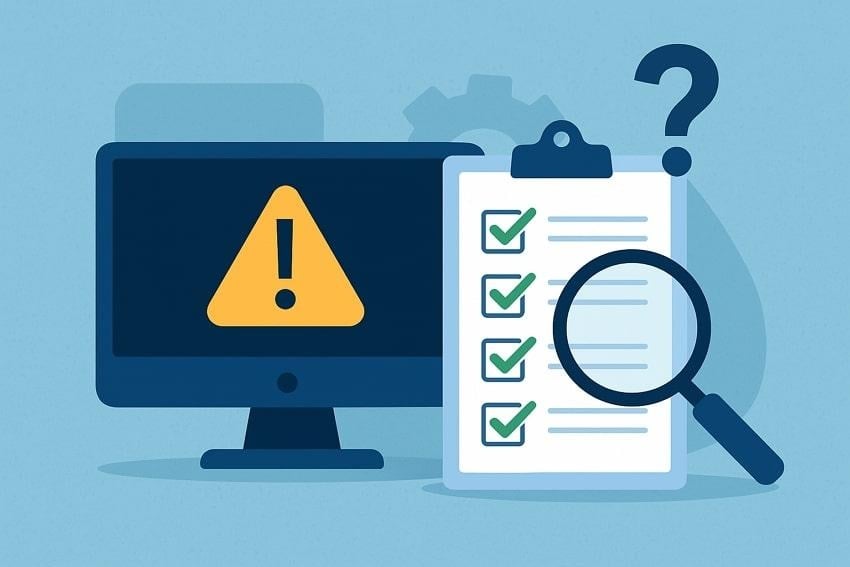
Use this checklist before retiring the old computer.
- Created a fresh backup on the old computer.
- Retained a separate copy of the backup.
- Installed a compatible QuickBooks Desktop version.
- Restored the intended company file.
- Confirmed that recent transactions are present.
- Compare important financial reports.
- Checked custom forms and supporting documents.
- Verified payroll and connected services where applicable.
- Tested printing and PDF creation.
- Tested multi-user access if needed.
- Created a new backup after successful verification.
- Retained the original computer and backup until the transfer was confirmed.
This final verification reduces the risk of switching to an incomplete or incorrect company file.
Frequently Asked Questions
Can I move QuickBooks Desktop to another computer without losing data?
Yes, provided you preserve the original data and follow a suitable transfer process. Create a verified backup, install a compatible QuickBooks version, restore the backup, and verify recent transactions and key reports before retiring the old computer.
Can I transfer QuickBooks using a USB drive?
Yes. A USB drive can transfer a company-file backup or supported migration files. It does not replace the need to install QuickBooks correctly or check supporting files and settings.
Do I need to install QuickBooks on the new computer?
In a standard Desktop migration, yes. Install the appropriate edition using an authorized installer, then restore or migrate the company data.
Will my QuickBooks license automatically transfer?
A company-file backup does not transfer or replace the software license. Installation and activation requirements depend on your product and license terms. Check those requirements before decommissioning the old computer.
Can I move QuickBooks to a newer version at the same time?
A migration and a version upgrade are separate considerations. Preserve a backup first, verify compatibility, and follow the upgrade instructions for the newer release. Do not assume a company file updated by a newer version can be reopened in an older release.
Where can I find my QuickBooks company file?
The file is usually stored in a folder chosen during installation or company-file setup, or in a shared network location. In QuickBooks Desktop, press F2 or Ctrl+1 to open the Product Information window and review the displayed file information.
What if the old computer no longer works?
If you have a valid backup stored elsewhere, you may be able to install QuickBooks on the new computer and restore that backup. If the only copy of the company file is on the failed computer, avoid formatting or discarding its drive. Data recovery may be necessary.
Is moving QuickBooks Desktop the same as moving to QuickBooks Online?
No. Moving Desktop to another computer involves installing or migrating the Desktop application and making the Desktop company data available on the new machine. Moving to QuickBooks Online is a separate conversion process with different preparation steps and potential data limitations.
Conclusion
The safest way to move QuickBooks Desktop to a new computer is to preserve the original data, install a compatible version, restore a verified backup or use a supported migration utility, and test the resulting setup carefully.
The most important step is verification. Confirm that you have the right company file, compare key financial reports, and check payroll, integrations, printing, and multi-user access where applicable. Keep the old computer and original backup available until you are confident that the migration is complete.
For additional technical information, consult the official QuickBooks documentation for your specific edition and version. If you use a specialized or multi-user configuration, confirm the requirements for that environment before making changes.
About the author
- Steven Moody is a tech-savvy accounting professional at Data Service Team, dedicated to resolving complex technical issues with fast and reliable. For expert assistance, Call: +1-(888)-718-7888.
Comments
Join the discussionNo comments yet. Be the first to comment.